How ArchiviOnline.it works

You upload documents from your browser or computer, find them from a single word and decide who sees them. Here’s how, without the jargon.

Three plans, one service

The core features are the same in all three. What changes is who uses it and who runs it.

Personal

For people who work alone: individuals and freelancers.

Where it runs
Your personal account, on shared infrastructure.
Who runs it
You.
Good to know
No other user sees your files or your name. There are no colleagues, administrators or shared spaces: you share only with a link.
Discover Personal

Business

For companies and firms where several people work.

Where it runs
On the shared infrastructure, as an organisation kept apart from other customers. A dedicated instance is available as an add-on, on quotation.
Who runs it
Your administrator.
Good to know
Each organisation has its own users, workspaces and rules, kept apart from the others.
Discover Business

Public sector

For municipalities, public bodies and schools.

Where it runs
On the shared infrastructure, as an organisation kept apart from other customers. A dedicated instance for your organisation is available as an add-on, on quotation.
Who runs it
Your organisation’s administrator.
Good to know
Like Business, with the strictest settings already in place from day one.
Discover Public sector

Organisation, workspaces and people

In the Business and Public sector plans the archive is organised on three levels. Let’s take an example: Pippo srl.

  1. The organisation

    Your company or public body. It has the purchased storage, a maximum number of users, its own security rules and one or more administrators. Organisations stay separate from each other, even when they are two companies in the same group: they can’t see each other.

  2. Workspaces

    These are your internal departments: Administration, Finance, Engineering. Each space has its own files and members. Non-members can’t see those files anywhere, not in lists and not in search. One person can belong to several spaces, and they all use the same purchased storage.

  3. People

    The organisation’s administrator creates users and spaces, decides who belongs to each and can set a storage limit for an individual user. Every user also has personal files that only they can see.

OrganisationPippo srl 1 administrator
  • WorkspaceAdministration

    • Rossi
    • Bianchi
    • The director
  • WorkspaceFinance

    • Verdi
    • Neri
    • The director
  • WorkspaceManagement

    • The director
Personal files. Everyone has their own, visible only to them.
One purchased storage, used by everyone
Rossi can’t see the files in Finance: not in lists, not in search. The director is a member of all three spaces.

Pippo srl has one organisation, one purchased storage and one administrator. Rossi and Bianchi work in Administration, Verdi and Neri in Finance. The director is in the Management space and is also a member of the other two. Each department sees only its own documents.

Roles

In the organisation

Administrator
Creates users and workspaces, decides who belongs to them and can set a storage limit for an individual user.
User
Works in their personal files and in the workspaces they belong to.

In a workspace

Administrator
Manages the workspace, and can do everything an editor can.
Editor
Adds, edits, moves and deletes files.
Contributor
Adds and edits files.

The administrator doesn’t see everything

The organisation’s administrator does not automatically see the files in spaces they are not a member of. If they decide to add themselves to a space, the action is logged. Each user’s personal files remain visible only to them.

In the Personal plan there are no organisations or workspaces: there is your account, with your files.

What happens to a file

From the moment you upload it to when, perhaps, you delete it.

  1. You upload it

    In the browser, by dragging it onto the page, or by copying it into the app’s folder on your computer.

  2. Antivirus checks it

    Every uploaded file goes through antivirus. An infected file never enters the archive.

  3. Its text is recognised

    Text in PDFs, documents and scans becomes searchable. Word, Excel, PowerPoint and PDF files are previewed, with previews generated on our servers.

  4. Every change has a version

    When the file changes, the previous version is kept and can be restored. Versions count towards your storage.

  5. If you delete it, it goes to the trash

    You restore it from the trash, on the website or in the app. The trash counts towards your storage too, until you empty it.

  6. Everything goes into the log

    Upload, open, share and delete go into a signed log kept for 24 months. Armada’s actions too.

Sharing with people outside

To send a document to a client, a professional or a citizen, you don’t need an attachment.

  • A link

    With a password, expiry date and download limit. You get a notice when it’s opened and switch it off whenever you like. The watermark is included in every version: you switch it on for each link.

  • A document request

    You send a link and whoever receives it, even without an account, uploads documents into one of your folders (available as a module).

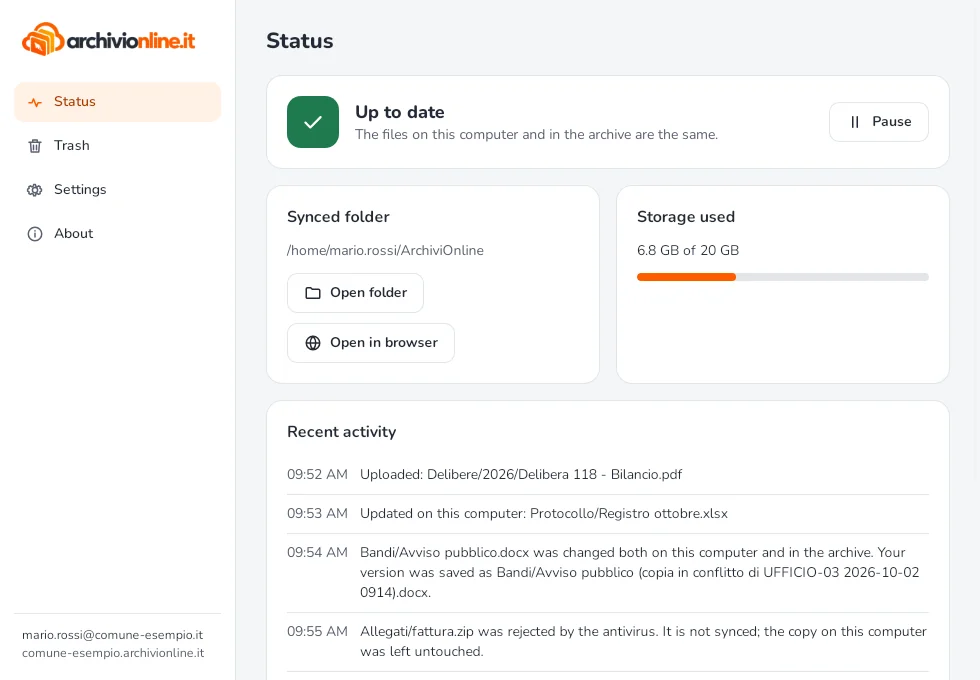
The ArchiviOnline desktop app window showing the sync status

The desktop app

With the Windows, macOS and Linux app, a folder on your computer stays in step with the archive, both ways.

  • What you change in the folder reaches the archive, and the other way round.
  • Offline, files stay on your computer: you open and edit them, and they sync when the connection is back.
  • You see the sync status and the storage used.
  • You restore deleted files from the trash.
  • On a phone or tablet you use the browser: open your archive’s address, nothing to install.

App guide

Frequently asked questions

Can departments see each other’s documents?

No. In the Business and Public sector plans each department works in its own workspace: non-members can’t see those files anywhere, not in lists and not in search. One person can belong to several spaces.

Can the administrator read my files?

Only you can see your personal files. The organisation’s administrator does not automatically see the files in spaces they are not a member of; if they add themselves to a space, the action is logged. Armada’s actions as the provider go into the log too.

What happens if ransomware encrypts my computer?

The app notices: when many files change all at once, or get suspicious extensions, it pauses uploading and warns you, so the encrypted files don’t replace the ones in the archive. The archive emails you and your administrators. And if something has already been uploaded, the previous versions stay in the archive: with Restore to a date you get your files back as they were before the attack. From the website you can also disconnect the affected computer. By default we keep the last 10 versions of each file, for up to 30 days (other values can be agreed in the Business and Public sector plans): the sooner you notice, the better.


Can I work without an internet connection?

With the desktop app, yes: the files in the folder stay on your computer, you open and edit them offline, and they sync when the connection is back. If the same file has also changed in the archive meanwhile, the app creates a copy instead of overwriting. In the browser you need a connection.

How do I bring the archive I already have?

In the Personal plan you copy your files into the app’s folder or upload them in the browser. In the Business and Public sector plans there is assisted migration: we move your existing archive for you, even from a disk you send us if it is very large.

How is it different from the cloud services I already use?

The big international cloud services are good tools for many uses. ArchiviOnline.it is built for working documents: the data stays in the Italian datacentres of an Italian company; no document goes through external services, not even for previews; every action, the provider’s included, is logged; and support is in Italian.

Let’s look at it with your documents.

We’ll show you the archive and how workspaces work. Free 7-day demo version, on request.