

The synced folder, status and pausing
How the ArchiviOnline folder works, what the status means, how to pause and how to change folder.
Updated on 2 November 2026
ArchiviOnline keeps a folder on your computer in step with “My files” in your archive. Whatever you put in the folder reaches the archive, and whatever changes in the archive, including from the browser or another computer, reaches the folder.
Work in the folder as usual: create, edit, rename, move and delete files and folders. ArchiviOnline notices on its own.
The window and the status
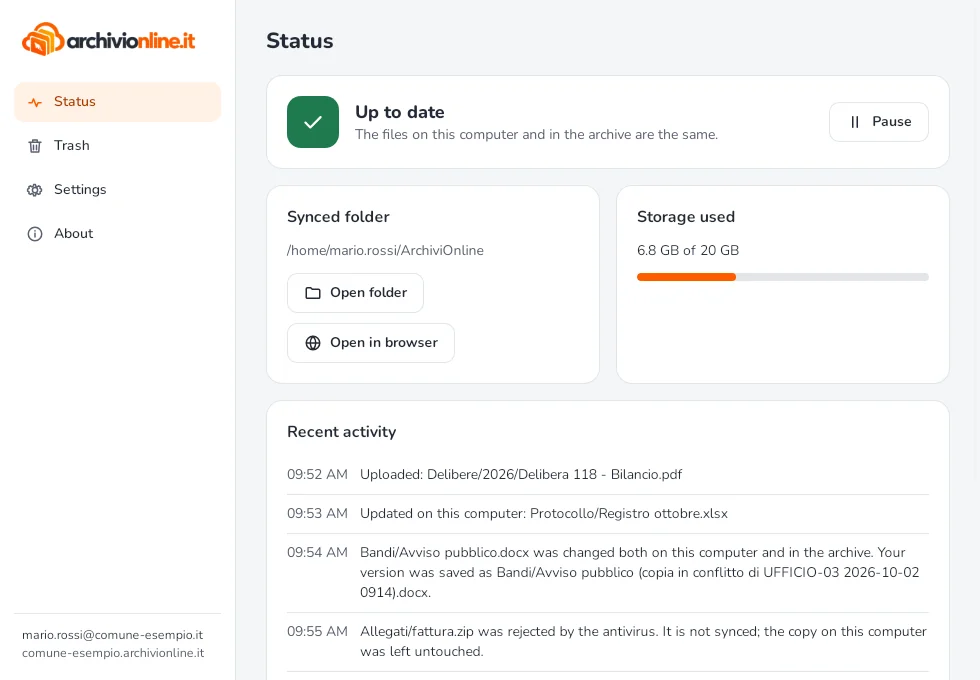
In the Status section you’ll find:
- the status at the top, such as “Up to date”, “Syncing…” or “Offline: will retry automatically”, with a progress bar and how many files are left;
- the synced folder, with Open folder and Open in browser;
- the storage used in the archive;
- files that need attention, with the reason: for example a name your computer doesn’t accept or a file rejected by the antivirus;
- recent activity.
Closing the window does not stop syncing: ArchiviOnline keeps working from its icon.
The icon and quick panel
On Windows the icon is in the notification area, bottom right: if you can’t see it, select the “Show hidden icons” arrow. On the Mac it’s in the menu bar, top right. On Linux it’s in the notification area, at the top. The icon changes with the status.
A click opens a small panel with the status, storage used, latest activity and the Open folder, Open website and Pause buttons. On Windows, right-click also offers Sync now, Settings and Quit. On Linux there is no panel: a click on the icon opens a menu with the status and the items Open ArchiviOnline, Open folder, Sync now, Settings…, Pause and Quit.
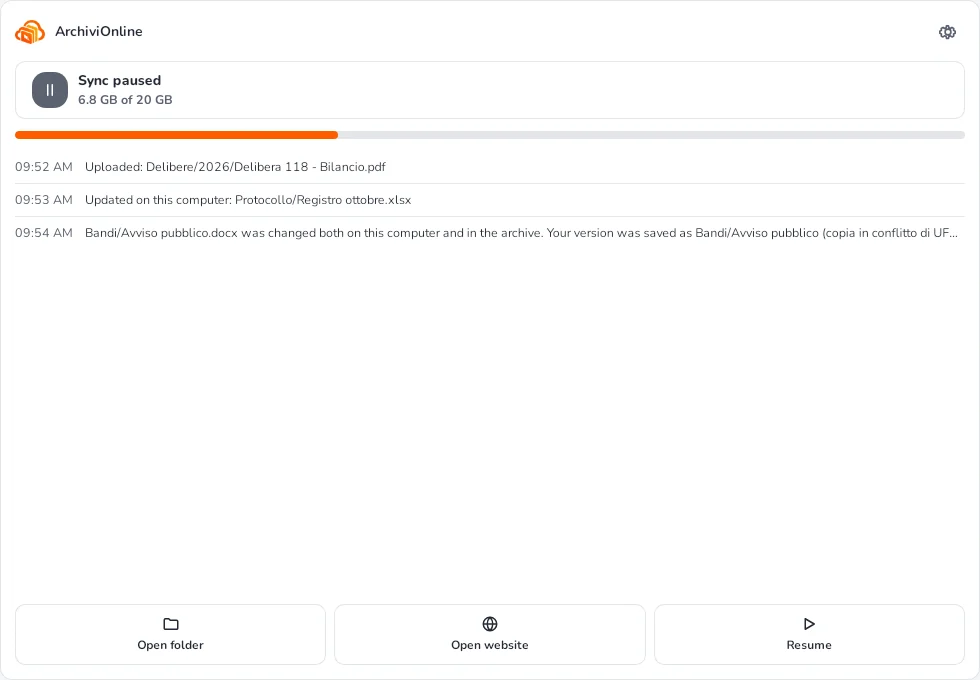
Pausing
Select Pause in the window or the panel: files stay where they are and nothing is uploaded or downloaded until you select Resume. Useful on a slow or metered connection.
Changing folder
In Settings › Synced folder choose Change folder…. Files in the current folder stay on the computer but are no longer synced; the new folder receives the archive’s files.
Special cases
- Files being scanned: every uploaded file is checked by the archive’s antivirus. While it’s being checked it doesn’t reach your other computers.
- Read-only files: some files may be locked in the archive, by a legal hold, a retention period or permissions. On the computer they’re read-only; if you edit them anyway, the original is restored and your change becomes a copy.
- Names your computer doesn’t accept: Windows doesn’t accept the characters
< > : " / \ | ? *, names likeCONorNUL, names ending in a dot or space, or paths over 259 characters. The file stays in the archive and you get a notice: rename it on the website. - Storage full: uploads pause, downloads carry on and nothing is deleted. Free up space or ask your administrator for more: uploads restart on their own.
Still stuck?
Contact HostingPerTe.it support: tell us the app version, your system and what happened.