

What to send to support
The information to gather when you ask for help with the app, where the log is and what never to send.
Updated on 2 November 2026
When you contact HostingPerTe.it support, this information helps us solve the problem faster.
What to include
- The ArchiviOnline version: you’ll find it in the About section.
- Your system: Windows 10, Windows 11, macOS or your Linux distribution, with its version. On Linux also say which package you use (AppImage, .deb or .rpm) and attach what
archivionline --diagnosticsprints in the Terminal. - The archive address and your account email. Never your password.
- What happened: what you were doing, the date and time (even roughly), whether it happens again.
- A screenshot of the ArchiviOnline window and any notification. On Windows: Windows + Shift + S. On the Mac: Shift + Command + 4, then the space bar and click the window.
- If the problem concerns a specific file, its path in the synced folder.
Diagnostics and the log
About › Prepare diagnostics… shows you what the diagnostics contain before saving them to a file to attach to your request. Settings › Support › Save the log… saves the app log.
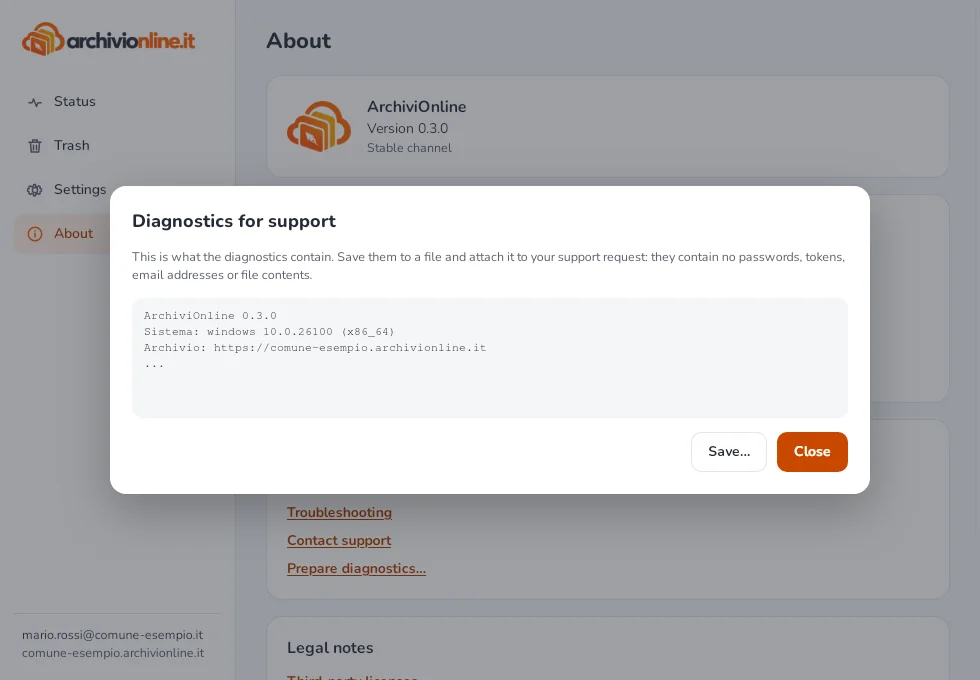
The log stays on your computer: ArchiviOnline never sends it by itself. It contains no passwords, two-step verification codes or file contents; it does contain the paths of synced files and the archive address.
Never send
- Your password: ArchiviOnline doesn’t store it anywhere and support will never ask for it.
- Your two-step verification recovery codes.
Don’t delete the app’s files
Don’t delete or edit the app’s internal files to try to fix a problem: the app would have to compare every file again. The synced folder also contains a hidden .~sync-staging folder used for transfers in progress: don’t delete it by hand.
Still stuck?
Contact HostingPerTe.it support: tell us the app version, your system and what happened.